Students join in two steps: you reserve a spot for each one on your roster, then they sign in and enter your class code. Each spot belongs to one email address, so only the student you added can take it.
Add students
Go to your class Home and scroll down to Students. There are two ways to fill your roster.
One at a time
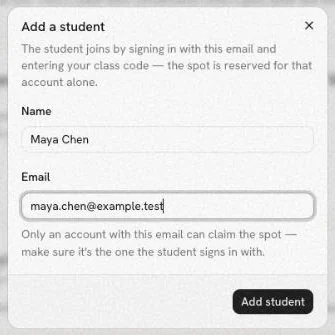
Press Add student.
The button is at the top right of the Students section.Enter their name and email.
Use the email they'll sign in with, usually their school account.Press Add student.
They appear on your roster straight away.
From a spreadsheet
Press Import CSV.
The button is beside Add student.Choose your file.
Use one student per row, with a name and the email they'll sign in with. A header row is optional, and most spreadsheet and student information system exports work as they are. You can import up to 250 students per file.Check the preview and import.
Tick Email everyone an invite now if you want each student to get a join link and the class code. You can also send invites later from the roster.
How students join
Give students your class code, or send them an invite from the roster. They then sign in with the email you added, enter the code, and choose Check code. That's all they need to do.
Keep track on your roster
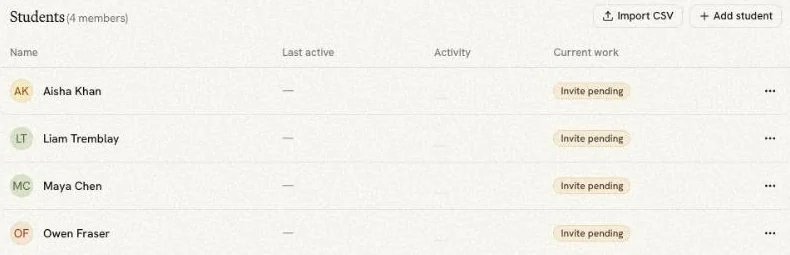
Each student shows Invite pending until they join. After that, the Current work column shows where they are: not started, in progress, submitted or reviewed.
Common questions
I entered the wrong email. How do I fix it?
Open the menu at the end of the student's row and choose Remove from class, then add them again with the right email.
A student says their code doesn't work.
Check the code itself first, then check that they're on your roster and signed in with the email you entered. Students with more than one account, like a personal and a school address, often sign in with the other one.
What happens when I remove a student?
They come off your roster, and if they had joined, they lose access to the class. You can add them again later.
Is there a limit on students?
The free plan includes 5 students across all your classes. On a paid plan, one class can hold up to 300. Plans, students and billing has the details.