A conversational assessment replaces a written assignment with a conversation. You choose the material, Pondery drafts a plan and a rubric, and you edit them before any student sees it. Your first one takes about ten minutes.
Add your material
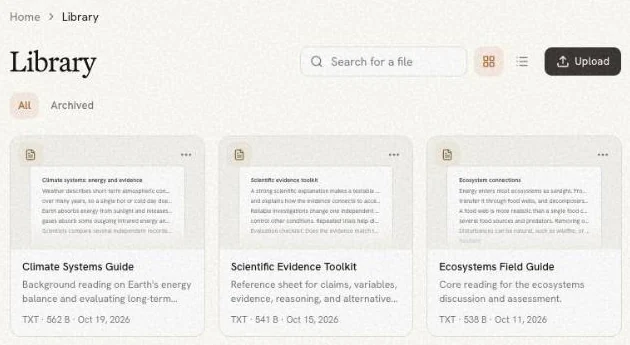
An assessment is built from something you've already taught, so start in your Library. Press Upload and add a reading, handout or lesson. PDF, Word, PowerPoint, Excel, CSV and plain text files all work, up to 25 MB each. You can also build an assessment from one of your Pages.
Build the assessment
Open Assessments and press Create assessment.
You can also start from your class home page.Choose your content.
Pick the file or page you want to assess, then press Next.Choose the goal.
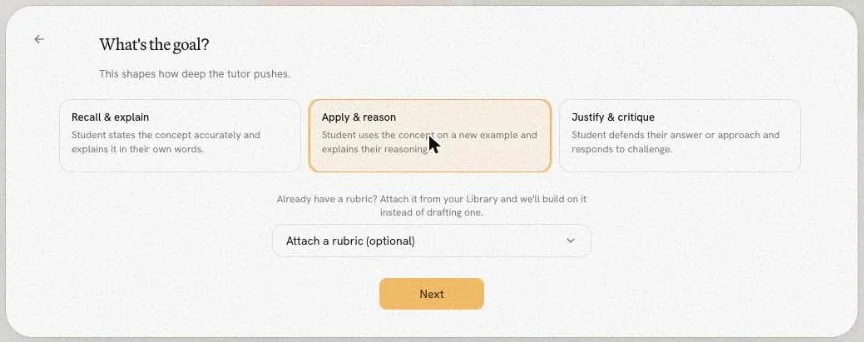
This sets how hard the tutor pushes. Recall & explain checks that students can put the idea in their own words. Apply & reason asks them to use it on a new example. Justify & critique asks them to defend their thinking when challenged.Attach a rubric, if you have one.
This is optional. If you pick one from your Library, Pondery builds on it. If you don't, it drafts one for you.
Pondery then reads your material and drafts a plan. This usually takes a few seconds.
Review the plan
This is the most important step, because it's what the tutor will follow with every student. Everything here is yours to change.
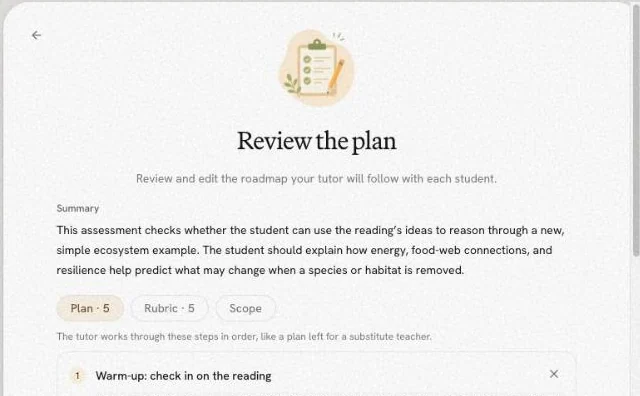
- Plan is the order of the conversation, written like a note you'd leave a substitute teacher.
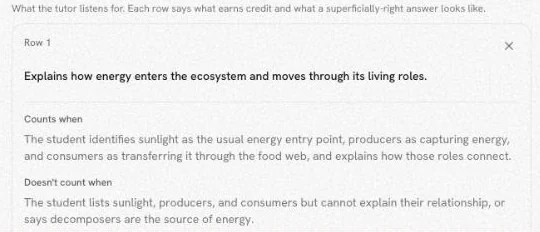
- Rubric is what the tutor listens for. Each row says what counts, and what a superficially right answer looks like.
- Scope lists what the assessment covers and the nearby topics it leaves out, so students aren't asked about things you haven't taught.
When you're happy with it, press Next, give the assessment the name students will see, and press Create assessment.
Give it to your students
Open a space.
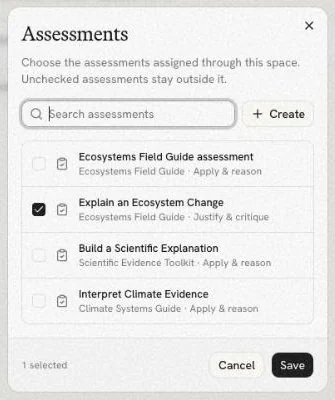
Choose one under Spaces in the sidebar, or use General.Press Manage beside Assessments.
It's in the panel on the right of the space.Tick your assessment and press Save.
Choose who gets it, and publish.
Use Access to pick everyone in the class or specific students. If the space is still a draft, press Publish. Set up a tutoring space covers this in more detail.
Next, read what your students will experience, so you can introduce it to your class.
Common questions
How many assessments can I create?
The free plan includes one. Pondery Teacher has no limit. See Plans, students and billing.
How do I hide an assessment from students?
Open it on your Assessments page and choose Archive. You can restore it later. Unlike archiving, Delete removes it for good.
Can I give different assessments to different students?
Yes. Put each assessment in its own space, and use Access to choose which students can enter each one.